
Troubleshooting
Caching and Speed Plugin Issues
WordPress caching plugins, speed optimisation plugins, and managed hosting providers (like WP Engine and Kinsta) can interfere with SourceTag by minifying, combining, or deferring its JavaScript. This page covers the most common setups and how to exclude SourceTag from their optimisations.
How caching plugins cause problems
These plugins improve page speed by doing things like:
- Minifying JavaScript (removing whitespace and shortening variable names)
- Combining JavaScript (merging multiple script files into one)
- Deferring JavaScript (delaying script execution until after the page renders)
- Lazy-loading scripts (only loading scripts when they’re needed)
While these optimisations are great for performance, they can break SourceTag in several ways:
- Minification might corrupt the script if the minifier doesn’t handle the IIFE correctly
- Combining it with other scripts can introduce conflicts
- Deferring it too late means the script runs after form elements are already in the DOM but after the user has started interacting
- Lazy-loading might prevent it from running at all on pages without visible triggers
What to do
Exclude the SourceTag script from all JavaScript optimisations. You can identify the script by its URL:
cdn.sourcetag.io/scripts/or by the filename:
st.jsBelow are the specific exclusion steps for the most common plugins.
WP Rocket
- Go to Settings > WP Rocket
- Click the File Optimization tab
- Scroll to JavaScript Files
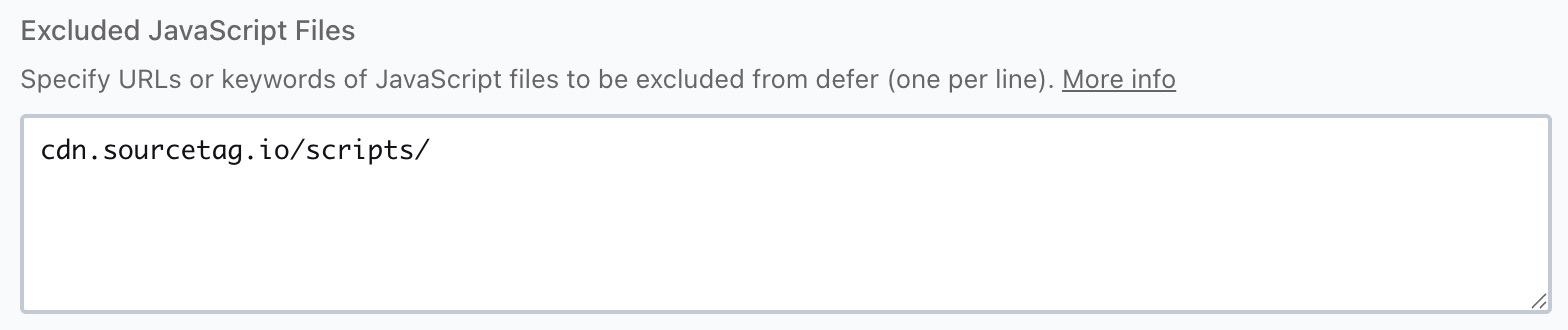
- If you use the “Load JavaScript deferred” feature, then in the Excluded JavaScript Files textarea, add:
cdn.sourcetag.io/scripts/- If you also use the “Delay JavaScript execution” feature, add the same URL to the Excluded JavaScript Files list in that section
- Save Changes
- Clear the WP Rocket cache
Autoptimize
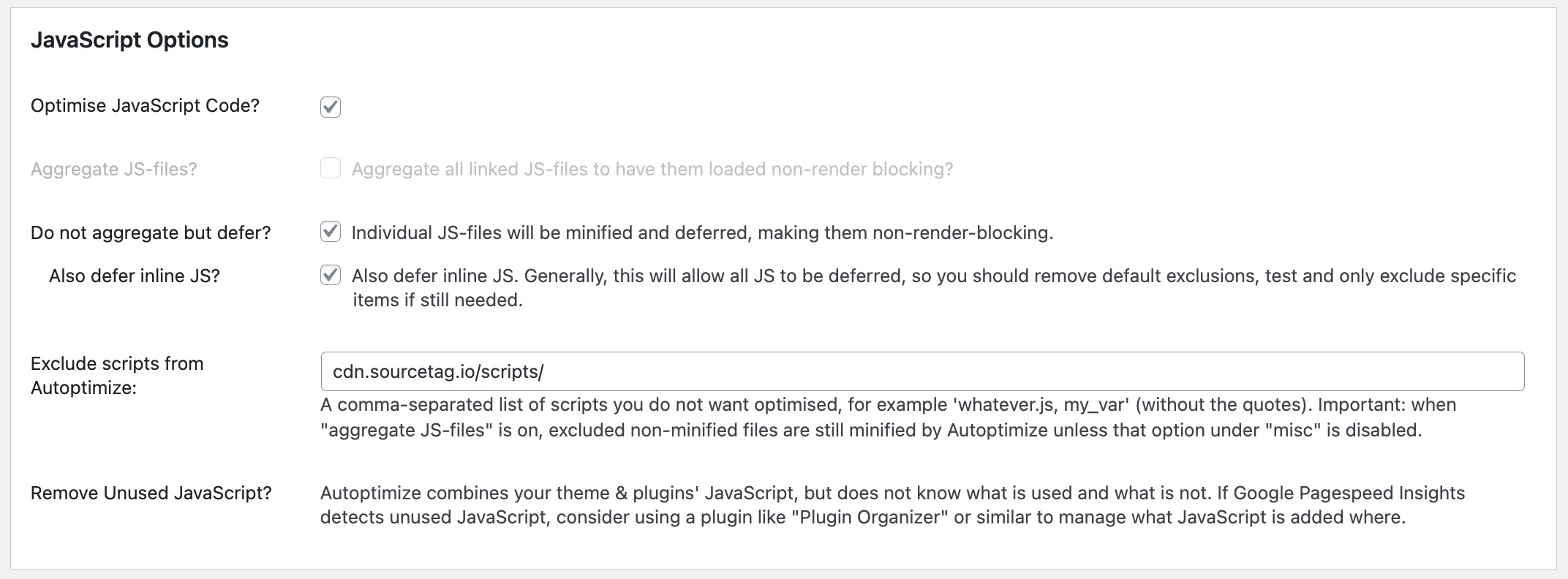
- Go to Settings > Autoptimize
- Click the JS, CSS & HTML tab
- In the Exclude scripts from Autoptimize field, add:
cdn.sourcetag.io/scripts/- Save Changes and Empty Cache
If you have “Aggregate JS-files” enabled, the exclusion will prevent SourceTag from being merged into the combined file. If you have “Also aggregate inline JS” enabled, make sure it doesn’t affect the SourceTag configuration.
LiteSpeed Cache
- Go to LiteSpeed Cache > Page Optimization
- Click the Tuning tab
- In the JS Excludes textarea, add:
cdn.sourcetag.io/scripts/- If you’re using the “JS Defer” or “JS Delayed” features, also add the URL to the JS Deferred Excludes field
- Save Changes
- Purge the LiteSpeed cache

W3 Total Cache
- Go to Performance > Minify
- In the Advanced section, find Never minify the following JS files
- Add:
cdn.sourcetag.io/scripts/- Save all settings
- Purge all caches from Performance > Dashboard

SG Optimizer (SiteGround)
- Go to SG Optimizer > Frontend Optimization
- Under JavaScript, find the “Exclude Scripts from being combined” or “Exclude Scripts from Minification” option
- Add:
cdn.sourcetag.io- Save and purge the cache
WP Fastest Cache
- Go to WP Fastest Cache > Settings
- If “Combine JS” or “Minify JS” is enabled, click the corresponding settings icon
- Add
cdn.sourcetag.ioto the exclusion list - Save and delete the cache
Perfmatters
- Go to Settings > Perfmatters > Assets
- Under “Delay JavaScript”, add
cdn.sourcetag.ioto the exclusion list - Save Changes
Managed hosting: WP Engine
WP Engine has its own built-in caching layer (EverCache) that runs at the server level, separate from any WordPress plugin. After installing SourceTag or adding hidden fields to your forms:
- Log in to the WP Engine User Portal (my.wpengine.com)
- Select your environment (Production, Staging, or Development)
- Go to Caching in the left sidebar
- Click Clear all caches
WP Engine also applies its own asset optimisation. If the SourceTag script isn’t loading or is being deferred unexpectedly:
- In the WP Engine User Portal, go to Caching > Advanced
- Check if any JavaScript optimisation is enabled at the server level
- If so, add
cdn.sourcetag.ioto the exclusion list
If you’re also using a WordPress caching plugin (like WP Rocket) alongside WP Engine’s built-in caching, you’ll need to configure exclusions in both places.
Note on server-side cookies: The SourceTag WordPress plugin’s server-side cookie option works on WP Engine, but only on pages that aren’t served from the full-page cache. If you’re using the server-side cookie feature, exclude pages with forms from WP Engine’s page caching, or use the Cloudflare Worker approach instead.
Managed hosting: Kinsta
Kinsta uses server-level full-page caching (powered by Nginx) and a CDN. Similar to WP Engine, you need to clear the cache after making changes.
- In your MyKinsta dashboard, go to your site
- Click Tools in the left sidebar
- Under Site cache, click Clear cache
Kinsta’s caching is generally transparent to JavaScript - it caches full pages but doesn’t modify or defer scripts. If you’re running a speed plugin alongside Kinsta, follow the relevant plugin instructions above.
Note on server-side cookies: The same caveat as WP Engine applies. Full-page caching means PHP doesn’t execute on cached pages, so the server-side cookie won’t refresh. Exclude form pages from the cache or use the Cloudflare Worker.
General approach for other plugins
If your caching or optimisation plugin isn’t listed above, look for settings related to:
- JavaScript minification exclusions
- JavaScript combination/aggregation exclusions
- Script defer/delay exclusions
Add cdn.sourcetag.io/scripts/ or st.js to the relevant exclusion list.
If you’re using first-party script serving from your own domain, use that URL in the exclusion instead.
How to tell if caching is the problem
If SourceTag works after clearing the cache but stops working once the cache rebuilds, a caching plugin is likely the cause. Other signs:
- The script works in incognito mode (where cached resources are often bypassed) but not in a normal browser session
- The
st.jsfile appears in the Network panel but its contents look different from the original (minified in an unexpected way, or bundled with other scripts) - JavaScript errors appear in the console mentioning the SourceTag script after optimisation
Further reading
- Troubleshooting for other common issues
- Install on WordPress for WordPress-specific setup
Doesn't answer your question or need more help? Get in touch.